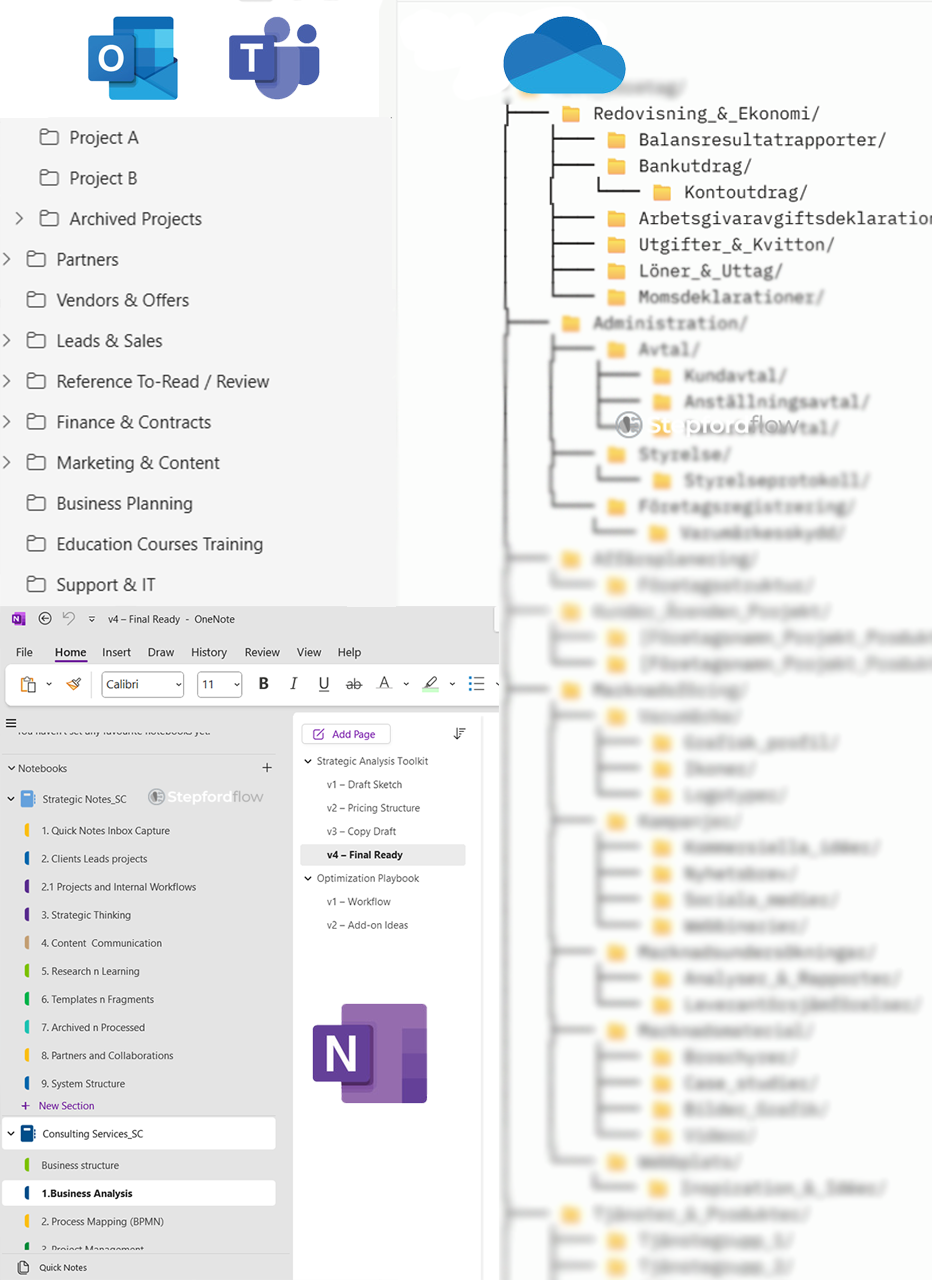
When your Microsoft to-do list becomes another job.
I use Microsoft To Do for both work and personal life. At one point, the structure became very ambitious: more categories, more lists, even a “P_” prefix to clearly identify personal lists.
It quickly became too much. Every new task required another decision about where it belonged, and reviewing everything meant jumping between too many lists.
If that sounds familiar, here is a practical way to simplify your setup.
1. Give each list a clear purpose
A manageable starting point could be:
📥 Inbox — capture new tasks quickly and sort them during a daily review.
💼 Work — concrete next actions across your professional responsibilities.
🏡 Personal — actions relating to home, health, finances and everyday life.
⏳ Waiting for — things someone else needs to deliver or answer.
💡 Someday / Maybe — ideas you have not committed to pursuing.
Add a separate project list when the volume of active tasks makes it useful. A topic having a name does not automatically mean it needs its own list.
2. Separate projects from next actions
“Website redesign” describes a project. “Send homepage feedback to the designer” tells you what to do next.
Write tasks as verb + action + enough context to act. Use steps for a short checklist, and keep detailed meeting notes or background material in OneNote.
3. Make follow-up visible
For a consultant, salesperson or project manager, progress often depends on someone else.
A useful “Waiting for” entry might be:
“Anna — approval of proposal sent 20 October.”
Add a reminder for when you intend to follow up. That keeps the commitment visible without relying on memory.
4. Plan today with My Day
Select a realistic handful of tasks from your existing lists each morning. Consider your meetings and available time before filling the day.
Use due dates for actual deadlines. My Day can hold your intentions for today without turning every task into an overdue obligation tomorrow.
5. Review the system weekly
Spend 15 minutes checking active work, outstanding replies and personal commitments. Remove stale tasks and identify the next action for each active project.
The useful test is simple: Can you quickly see what to do next, what you are waiting for and what can wait?
That is the thinking behind Stepford Flow’s Microsoft 365 templates: a ready-made starting structure you can adapt to your work and life.
Explore the templates:
https://www.stepfordflow.com/services/microsoft-365/templates



.png)